While not *needed*, having administrator permission (sudo) is helpful for troubleshooting
### Step 1: Installing [PortProton](https://flathub.org/apps/ru.linux_gaming.PortProton) #### Method 1: Via Flathub (recommended) Follow the [Flathub setup guide.](https://flathub.org/setup) Then, install the app by opening a terminal and typing: ```bash flatpak install flathub ru.linux_gaming.PortProton ```If it doesn't work or you need admin rights, check the second method.
#### Method 2: Manual installation Go to [flathub.org/apps/ru.linux\_gaming.PortProton](http://flathub.org/apps/ru.linux_gaming.PortProton) and hit “download”. This will download a `.flatpakref` file. The file should appear in your Downloads folder. If your browser asks you where it should save it, choose a location that you will remember. [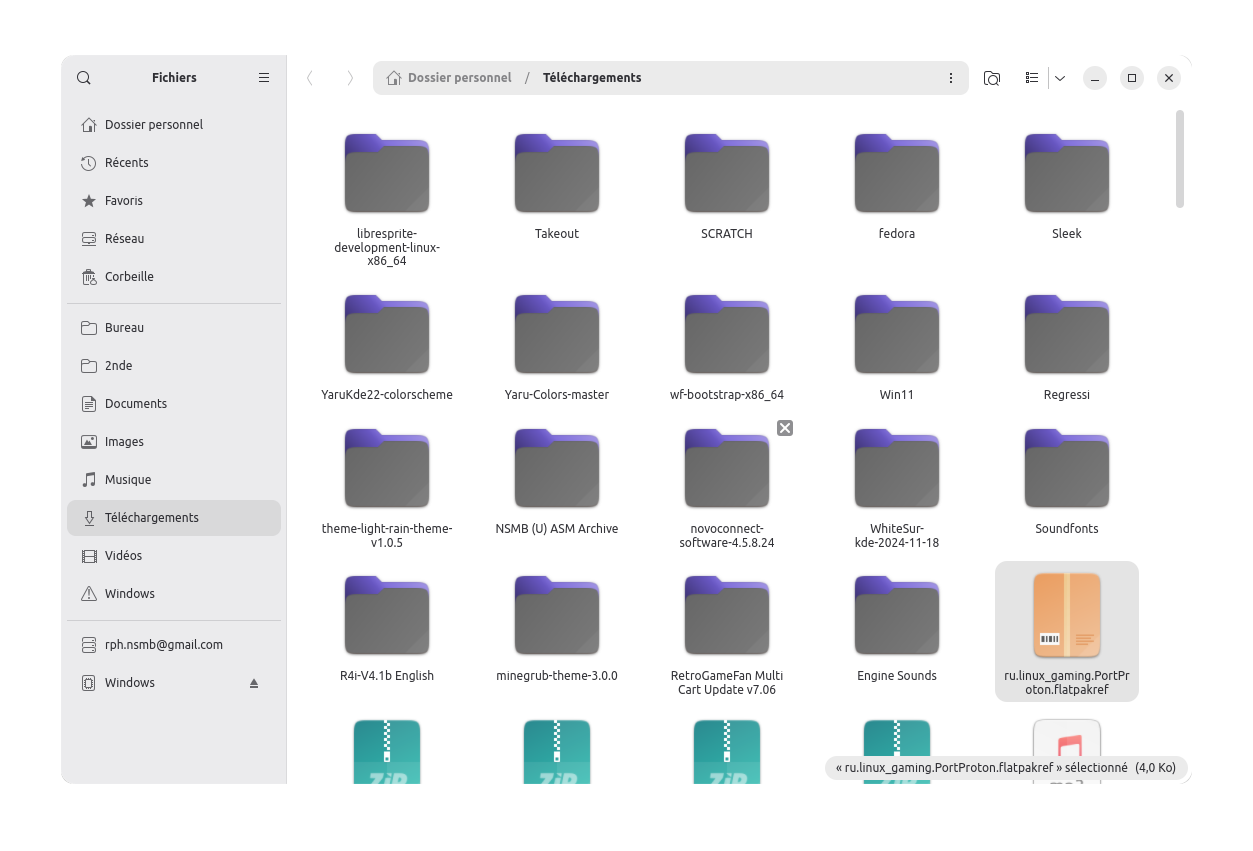](https://bookstack.nsmbcentral.net/uploads/images/gallery/2025-04/capture-decran-du-2025-03-23-12-42-49.png) Go to the file's location, right-click an empty space, and select "Open in a terminal". From there, type the following command: ```bash flatpak install ru.linux_gaming.PortProton.flatpakref ``` If it doesn't work because admin rights are needed, try the following command instead: ```bash flatpak install --user ru.linux_gaming.PortProton.flatpakref ```If this method still doesn't work, ask us in NSMB Central.
Congratulations! You're now ready to open NSMBe!
### Step 2: Installing NSMB EditorPortProton might download some files before starting the first time you launch it. That's normal.
Go to your NSMBe5 folder. Open `NSMBe5.exe` by double-clicking on it. You should see a window like this: [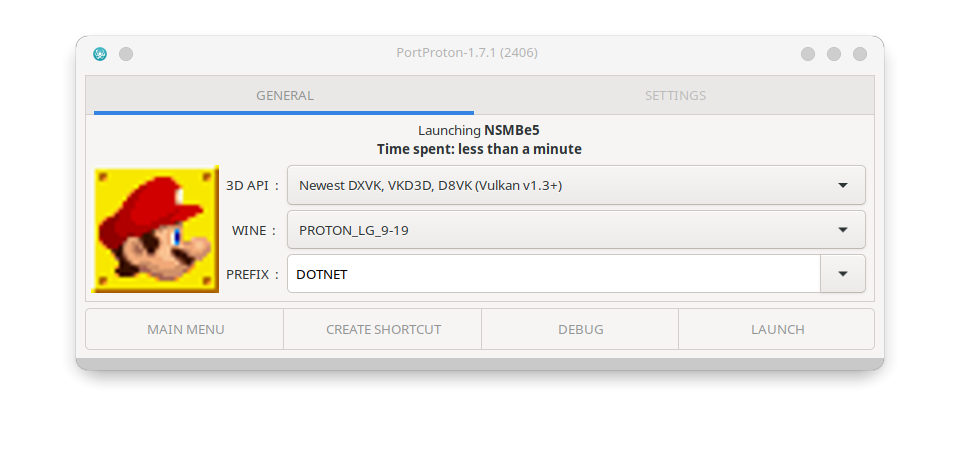](https://bookstack.nsmbcentral.net/uploads/images/gallery/2025-04/copie-decran-20250330-212505.png)Make sure to change the prefix to "DOTNET"
If you want to add a shortcut to your app menu, click on "Create shortcut". It will ask you where to put it: [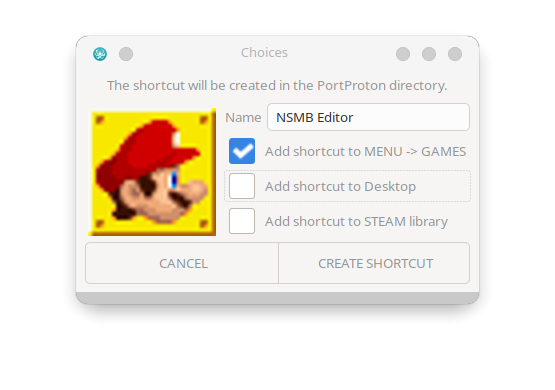](https://bookstack.nsmbcentral.net/uploads/images/gallery/2025-04/copie-decran-20250330-212530.png) Once it's done, click "create shortcut". Now, to launch the app, just have to click on the "Launch" button, and there you go! [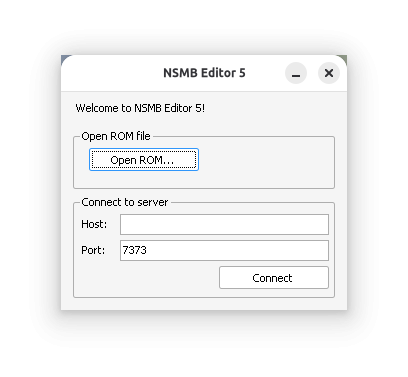](https://bookstack.nsmbcentral.net/uploads/images/gallery/2025-04/capture-decran-du-2025-03-23-12-51-25.png)Congratulations! Now, you are ready to make awesome stuff with Linux!
### FAQ / Troubleshooting > ##### Some actors appear weirdly, how can I fix it? When opening a level in the level editor, some elements may seem scaled incorrectly: [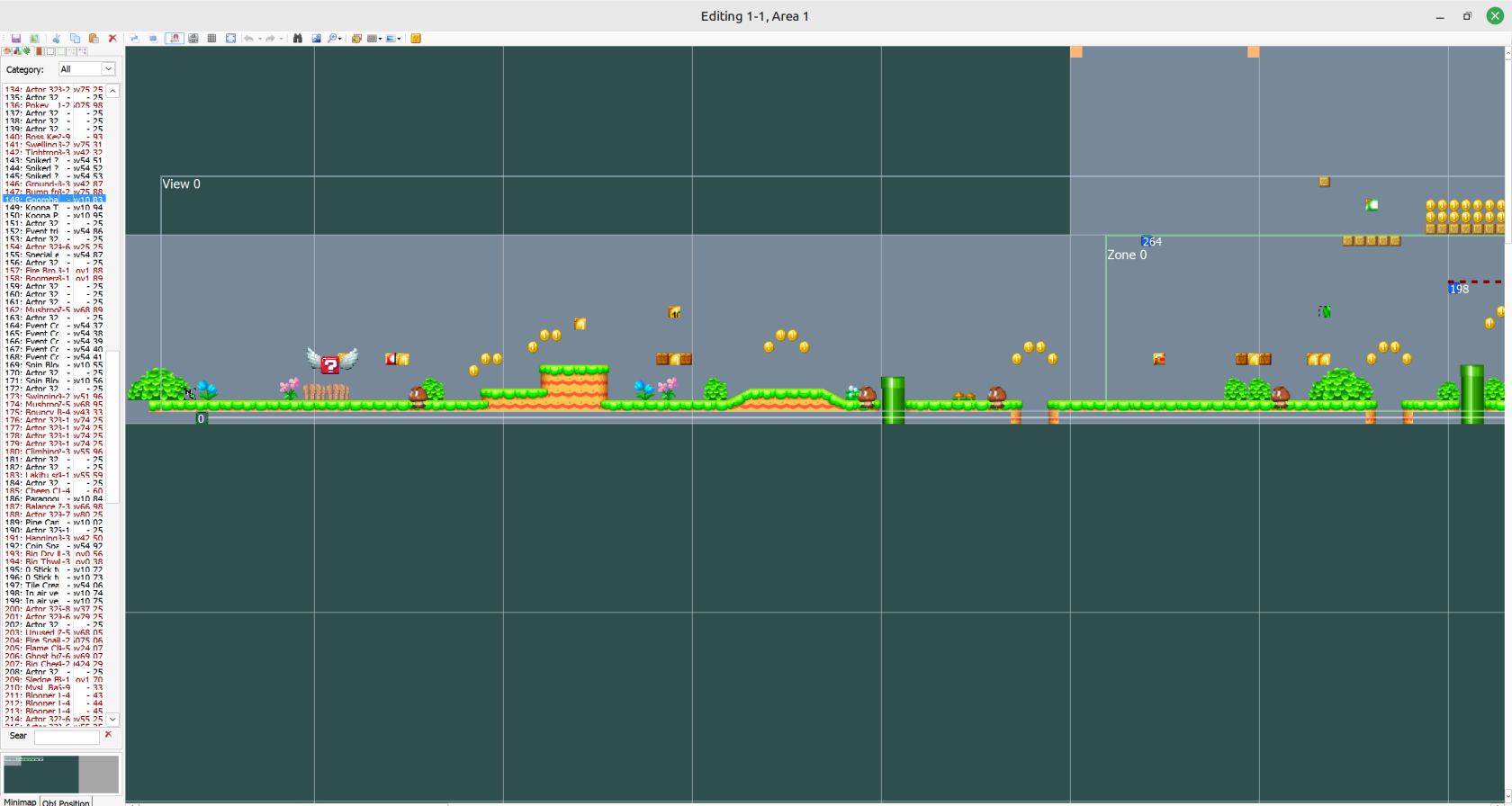](https://bookstack.nsmbcentral.net/uploads/images/gallery/2025-04/Qjvfractionnal-scaling-issue.png) This is because your computer is using **fractional scaling**. This zooms your screen, but not all elements in the app. To fix that, go into your display settings and select 100% or 200%: [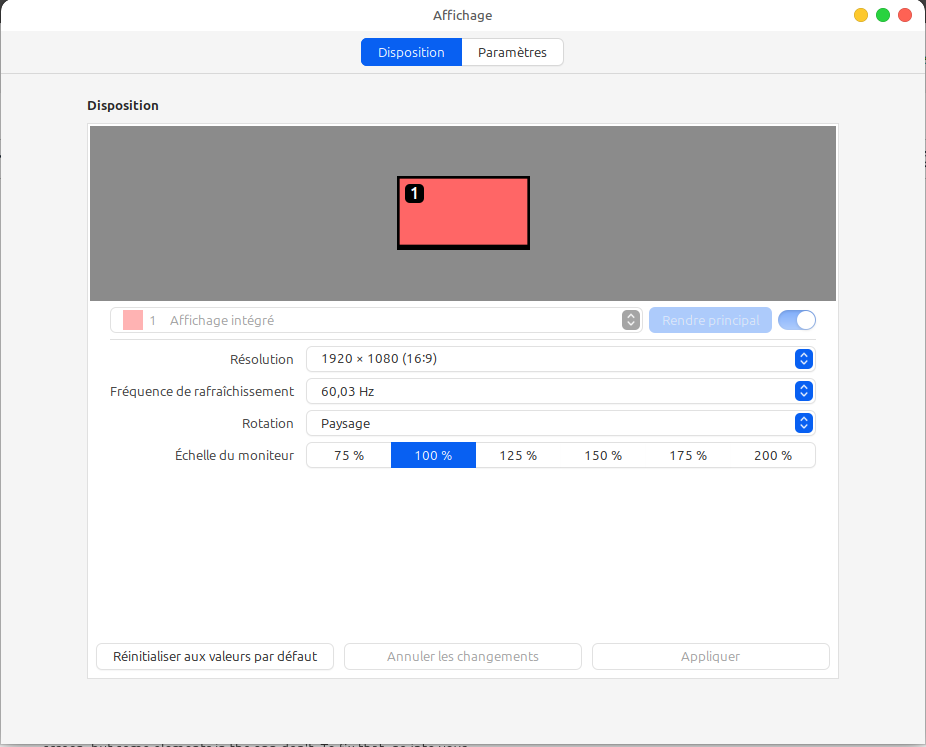](https://bookstack.nsmbcentral.net/uploads/images/gallery/2025-04/my0display.png) Now it's working better! [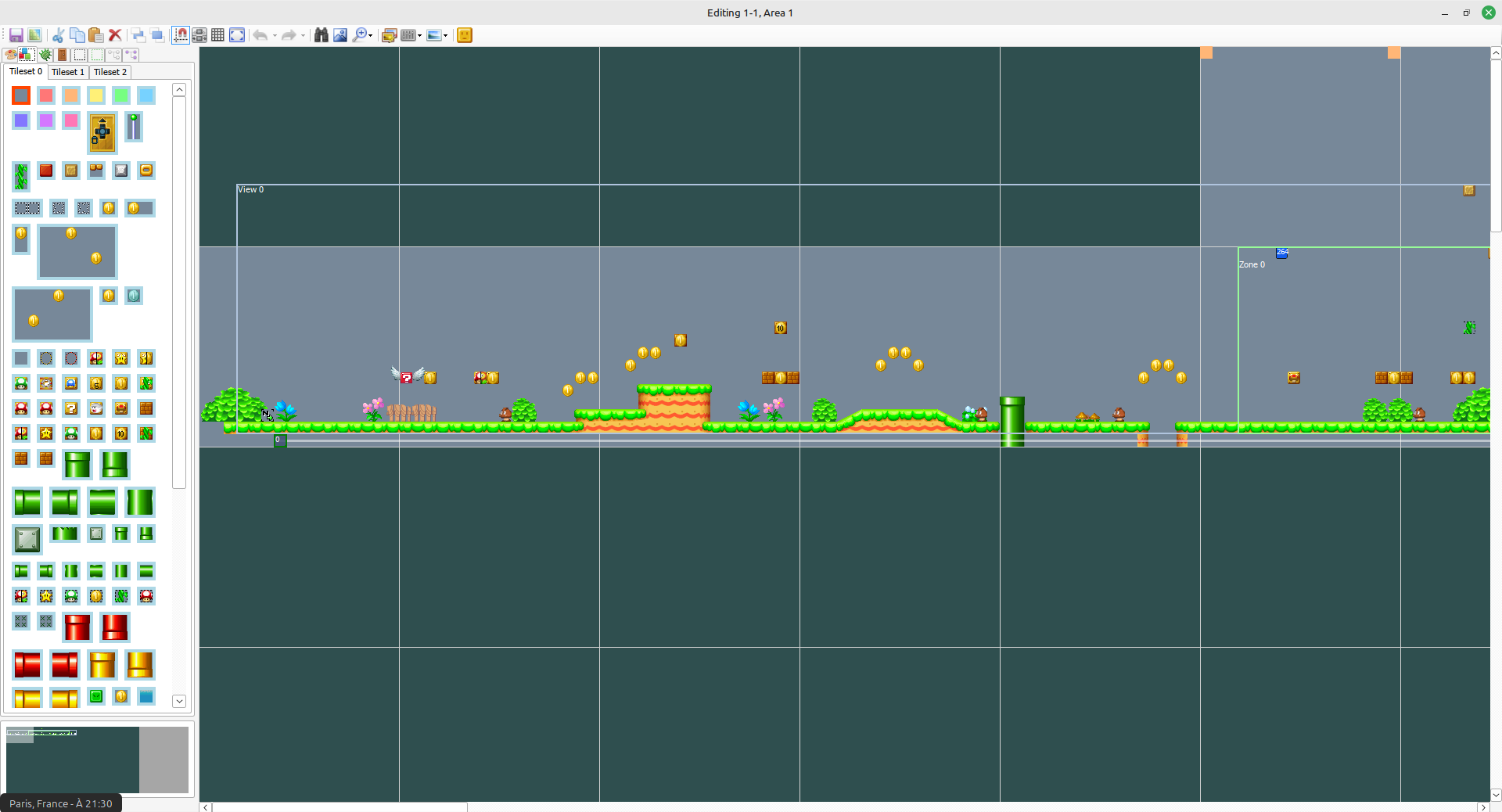](https://bookstack.nsmbcentral.net/uploads/images/gallery/2025-04/now-its-working.png)No better solution has been found yet. If you have one, please tell `@rph_nsmb` on the NSMB Central server.
> ##### It takes a while to navigate with the file explorer. Can't I add a shortcut? Of course you can! First, you will need to go to the parent folder of the one you want to make a shortcut (for example, I want to add `/home/rph/Documents/Template`, I'll go to `/home/rph/Documents`). Right-click on the folder you want to make a shortcut and select "create link". You should see something like this: [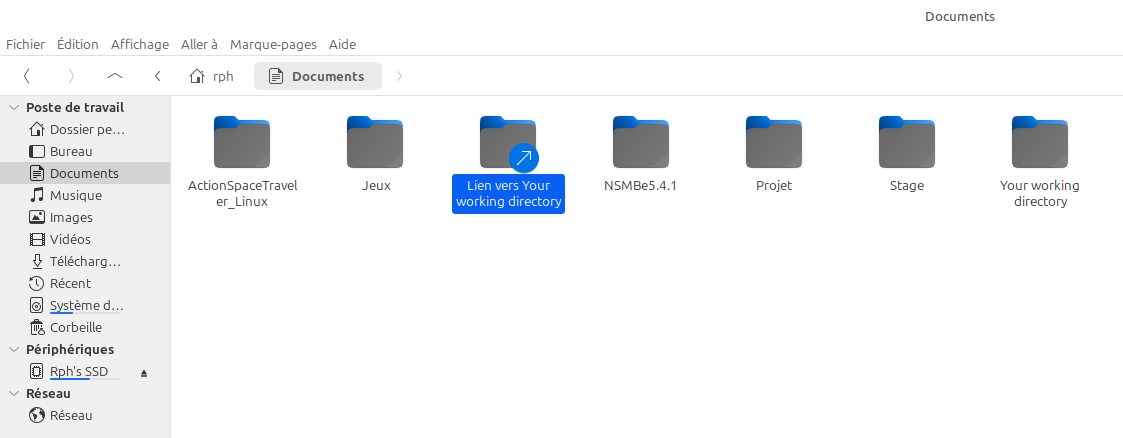](https://bookstack.nsmbcentral.net/uploads/images/gallery/2025-04/link.png)If you don't see the "Create shortcut" option, take a look at the file explorer's menus or check its settings.
Right-click on the link and select "cut". Now, you will need to go to your PortProton setting folder. To do so, go to your home folder and go to `PortProton/prefixes/DOTNET/dosdevices`. Now paste your linked folder and rename it to a lowercase letter followed by a colon, for example: `n:`. [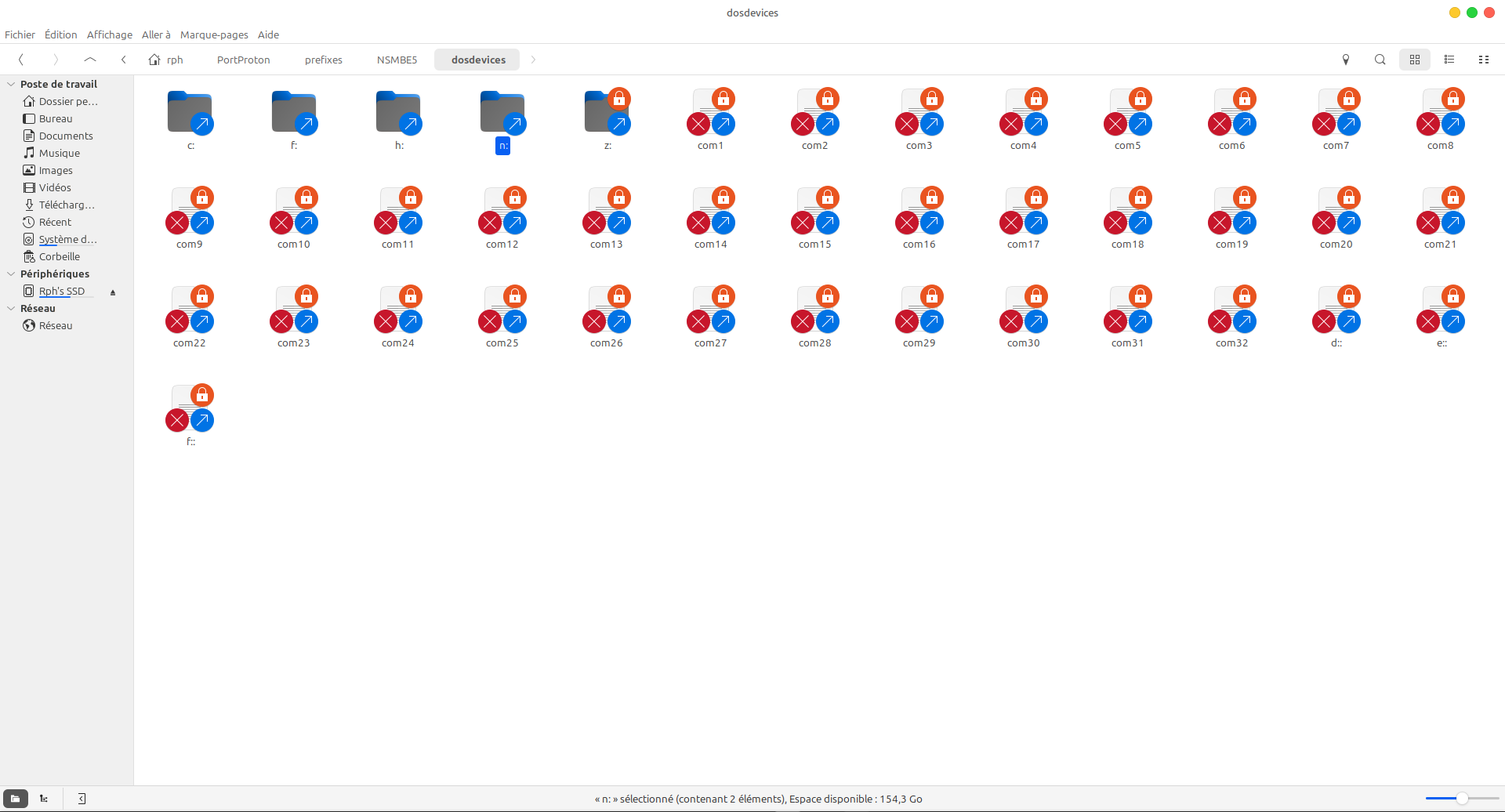](https://bookstack.nsmbcentral.net/uploads/images/gallery/2025-04/drive.png) Now, if you open the file explorer, you should see your drive in "Computer": [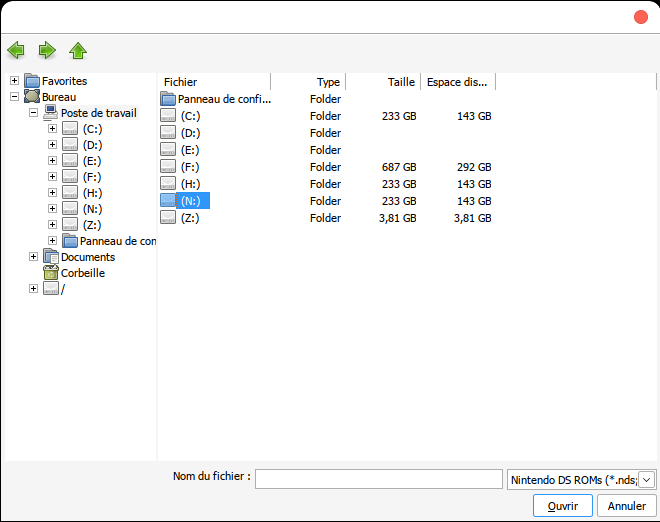](https://bookstack.nsmbcentral.net/uploads/images/gallery/2025-04/drive-2.png)Congratulations! You have your shortcut.